
Status & Monitoring
The Status tab gives you a live view of OBS system performance and stream health. Use it to spot problems before they affect your audience - dropping frames, spiking CPU, or an unstable bitrate will all show up here.
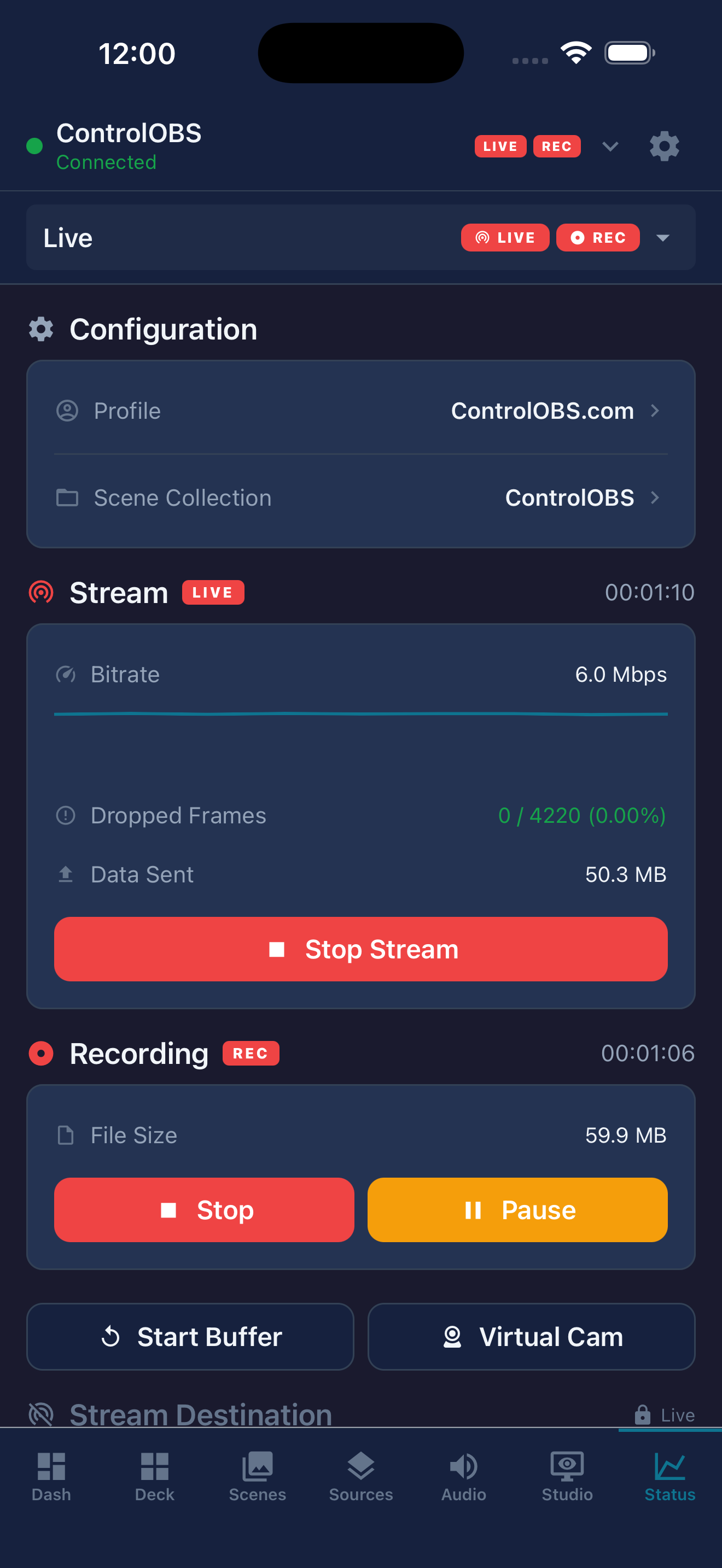
Status tab - live stream and system statistics
Live statistics
Output bitrate
The current stream output bitrate in kbps, calculated from the byte delta between polls and updated every 2 seconds. A steady bitrate close to your target indicates a healthy stream. Large drops may indicate network instability or encoder overload.
Dropped and skipped frames
Shows the number and percentage of frames dropped since the stream started. Dropped frames (network) indicate the stream cannot keep up with the upload. Skipped frames (rendering) point to CPU or GPU overload.
CPU usage
The percentage of CPU being used by OBS Studio. High CPU usage (above 80%) may cause dropped frames or encoding artefacts.
FPS
The current render frame rate. This should be close to your target FPS (usually 30 or 60). A persistently low FPS indicates the encoder is struggling.
Memory usage
The amount of RAM currently used by OBS Studio. High memory usage over long streams can cause instability on machines with limited RAM.
Disk space
The amount of free disk space on the drive where OBS saves recordings. A warning appears when space is critically low.
Stream and recording timecodes
The elapsed time of the current stream and recording session, shown in HH:MM:SS format. The recording timecode resets between sessions.
Session history
The Status tab keeps a log of recent stream sessions. Each entry shows the start time, duration, and averages for bitrate, dropped frames, and CPU. This is useful for reviewing performance after a stream without needing to check OBS logs.
Stream widget on the Dashboard
A compact version of the stream status is available as a widget on the Dashboard tab. It shows the live or offline state, current bitrate, and timecode at a glance. You can go live or stop the stream directly from the widget without navigating to the Status tab.
See the Settings & Customisation guide for how to configure which widgets appear on the Dashboard.