
Scenes
The Scenes tab gives you full control over your scene list. Switch scenes with a single tap, reorder them to match your workflow, hide the ones you use rarely, and preview any scene before putting it live.
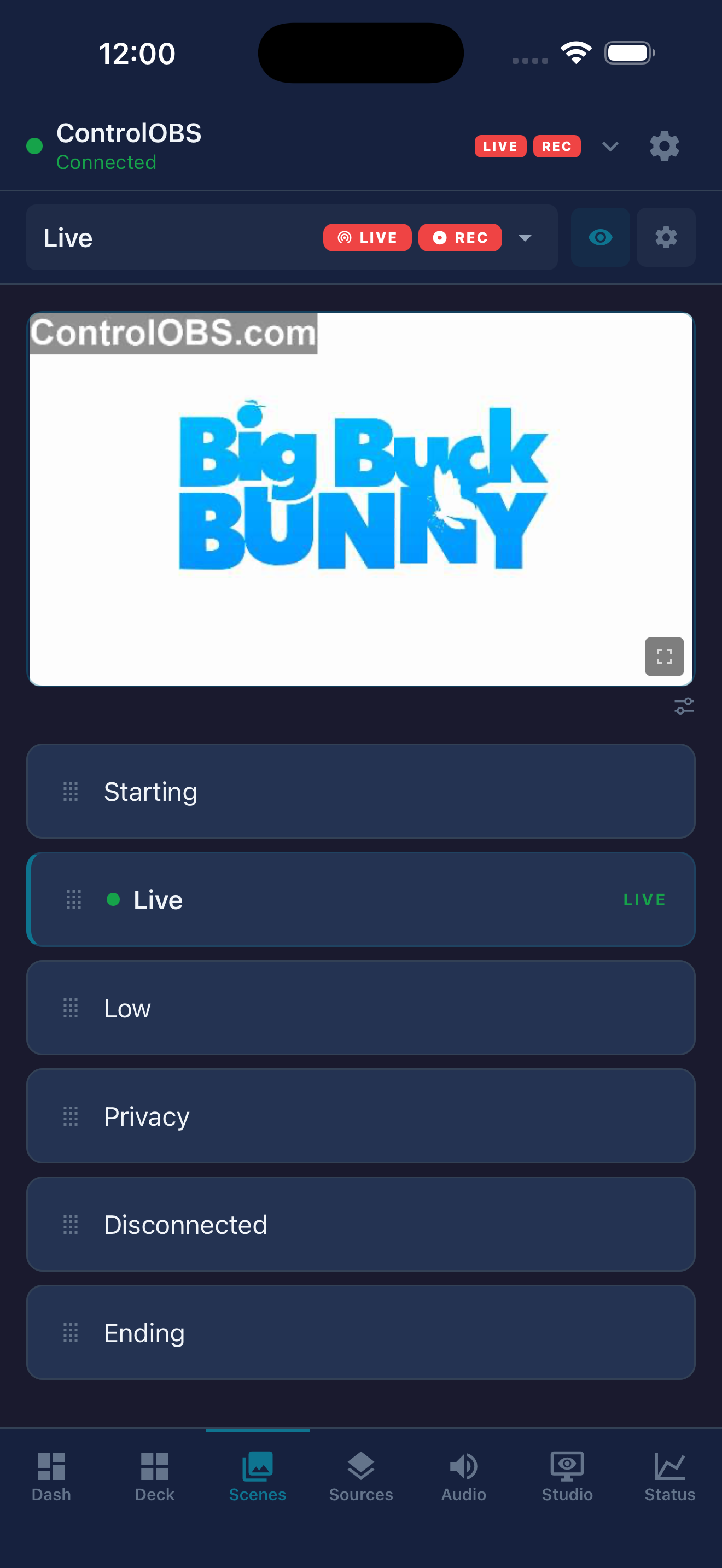
Scenes tab - tap any scene to switch instantly
Switching scenes
Tap any scene to switch to it immediately. The currently active scene is highlighted. If Studio Mode is enabled, tapping a scene sets it as the preview scene rather than going live directly - use the transition button to push it to programme.
Scene switches are instant and do not require any confirmation. If you use Studio Mode, see the Studio Mode guide for how to preview before going live.
Reordering scenes
Long-press a scene card to enter reorder mode, then drag it to the desired position. The new order is saved immediately and reflected in OBS Studio.
Hiding scenes
If your scene list contains scenes you rarely switch to manually, you can hide them to keep the list tidy. Swipe left on a scene card and tap Hide. Hidden scenes still exist in OBS and can be revealed again at any time from the same menu.
Live preview
Tap the preview icon on a scene card to open a live video preview of that scene. This shows the composited output directly from OBS without switching the active scene.
Scene collections
If you use multiple scene collections in OBS Studio, you can switch between them from the app. Tap the collection name shown at the top of the Scenes tab to open the collection picker.
Switching scene collections may cause a brief disconnect as OBS reloads. The app will reconnect automatically.